DHCP Stats
Introduction
What DHCP servers are supported?
NAV can request, collect, and display stats from DHCP servers if they expose an API for fetching stats. Alternatively, if a DHCP server does not expose an API for fetching stats, a standalone script running on the DHCP server itself can send stats directly to NAV’s Graphite/Carbon timeseries database backend, alleviating the need for NAV to request and collect stats at the cost of extra maintenance for the administrator.
NAV currently supports collecting stats from one DHCP server implementations:
- Kea DHCPv4 Servers (IPv4)
Configure at minimum a Kea DHCPv4 HTTP/HTTPS control socket, and assign each pool in the Kea DHCPv4 configuration unique pool IDs, and NAV can start collecting IPv4 stats from each Kea DHCPv4 pool over the control socket.
What DHCP stats are collected?
- Total addresses (IPv4)
The total amount of IP addresses controlled by the DHCP server on a per range/pool/subnet basis.
- Assigned addresses (IPv4)
The amount of IP addresses that are in use (assigned to clients or used by misbehaving clients) on a per range/pool/subnet basis.
- Unassigned addresses (IPv4)
The amount of IP addresses that are not in use (the difference between total and assigned addresses) on a per range/pool/subnet basis.
- Declined addresses (IPv4)
The amount of IP addresses that are used by misbehaving clients (and thus not available for assignment) on a per range/pool/subnet basis. (This stat is currently not used in NAV.)
NAV collects these stats on a per range basis if possible. If that is not possible, it collects on a per pool basis if possible. If that is not possible either, it collects stats on a per subnet basis if possible.
Where can I see collected DHCP stats in NAV?
DHCP stats are displayed in two types of pages in the NAV web UI you’re probably already familiar with:
VLAN pages. The stats collected for a group of ranges/pools/subnets are displayed on a specific VLAN’s page if at least one IP address contained in the group also is contained in that VLAN.
Prefix pages. The stats collected for a group of ranges/pools/subnets are displayed on a specific Prefix’s page if at least one IP address contained in the group also is contained in that Prefix.
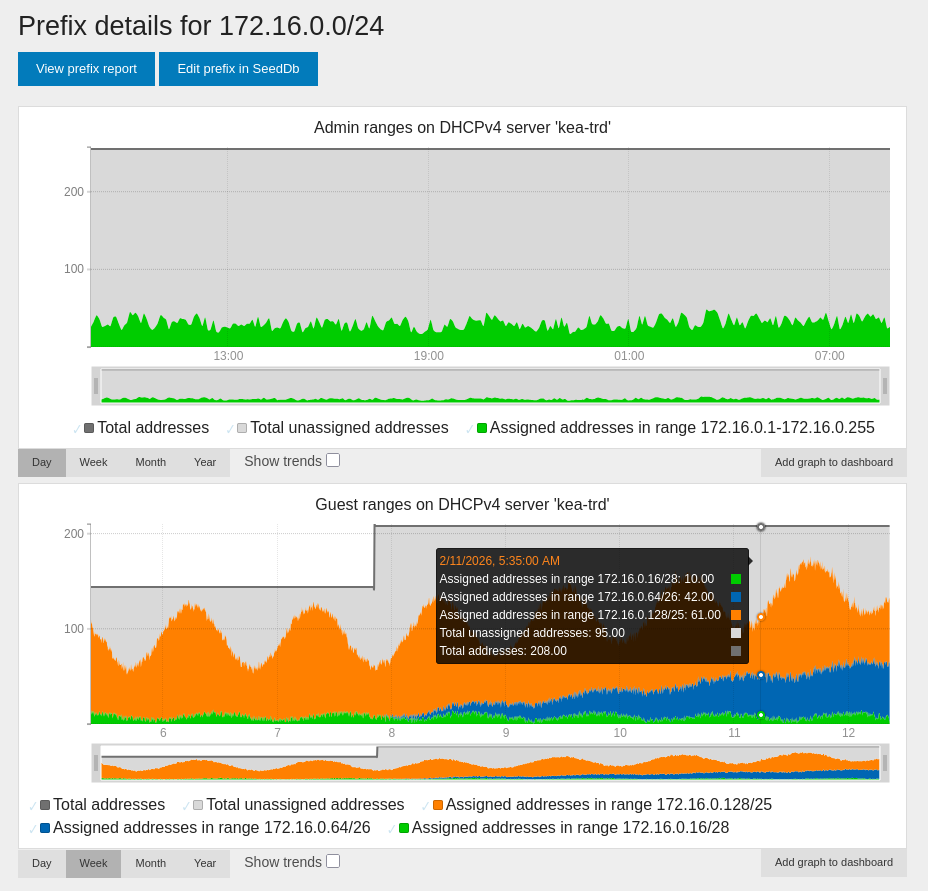
Below is an example depicting how stats collected for two groups of ranges,
“Guest” and “Admin” on the DHCP server “kea-trd”, are displayed on the page for
the prefix 172.16.0.0/24. (Note how “Guest” and “Admin” are two separate
private networks occupying the same private address space on the DHCP server;
but since the range 127.16.0.1-127.16.0.255 is collected under the group
name “Guest”, and the rest of the ranges are collected under the group name
“Admin”, the stats from the different private networks are separated correctly
and won’t interfere with each other. This separation would also have worked if
the stats came from separate servers, even if they had the same group name. So
you should only worry about stats from different private networks interfering
with each other if all stats come from the same server and has the same group
name.)
Configuration
Usually, for each DHCP server you want to collect stats from, both NAV and the DHCP server needs to be configured.
The first subsection below describes how to configure NAV the first time you start collecting DHCP stats. The following subsections describe how both NAV and a specific DHCP server implementation’s server needs to be configured for NAV to start collecting stats from that server.
Kea DHCPv4 Servers (IPv4)
Note
NAV works with Kea versions 2.4.0 and above. The most recent version known to work with NAV is Kea version 3.0.0.
Note
NAV does not require that any hook libraries have been installed into the Kea DHCPv4 server (see Hook Libraries in kea.readthedocs.io). Kea offers a hook that adds extra API commands which become necessary to use if one wants reliable stats when using a setup where multiple Kea servers share the same underlying lease database (see Statistics Commands for Supplemental Lease Statistics in kea.readthedocs.io); if you run such a setup, keep in mind that NAV does not make use of this hook, so stats may in this case be unreliable. [1]
Note
A pool in Kea is a range in NAV. NAV collects IPv4 stats from Kea DHCPv4 servers on a per-Kea-pool-basis (or, from NAVs perspective: a per-range-basis).
We’ll walk through the steps needed to configure the Kea DHCPv4 server and NAV in order to start collecting stats. Repeat the steps for each Kea DHCPv4 server you’d like to collect stats from.
Configuring a Kea DHCPv4 Server
Note
Kea versions 2.x.x are configured in a slightly different manner than Kea versions 3.x.x. The configuration steps below are described with Kea versions 3.x.x in mind; the steps needed for Kea versions 2.x.x should be straightforward to infer. Nonetheless, we’ve included working examples for both Kea versions 3.x.x and Kea versions 2.x.x further below.
A control socket that serves the Kea API of the Kea DHCPv4 server needs to be set up with a
socket-typeofhttporhttpsand asocket-addressplussocket-portcombination reachable either directly or through a reverse proxy by NAV (see Control Socket in kea.readthedocs.io). NAV needs access to the three Kea API commands config-get, config-hash-get and statistic-get-all. For security purposes, consider disabling access to any other API command or at least disabling write access over the control socket (as of Kea version 3.0.0, these security settings only seem to be available through the RBAC premium hook). Also consider enabling client SSL certificate authentication (see either your reverse proxy’s TLS documentation or TLS/HTTPS Configuration in kea.readthedocs.io). As stated above, config-get must be available for NAV to use; therefore you should consider whether there’s information in the Kea configuration (such as user passwords) that are too sensitive to be served.Note
The config-get API command is needed to collect stats from each Kea pool since pool IDs are not known beforehand by NAV (and as of the latest Kea version, version 3.0.0, no fit for purpose API command exist to obtain pool IDs). The network4-list and subnet4-list API commands (open-sourced in Kea starting with version 3.0.0) could alternatively have been used to instead collect stats from each Kea subnet if access to the config-get API command is disabled by an administrator. Neither defaulting to nor falling back to using network4-list and subnet4-list is however currently supported by NAV.
Each pool in the Kea DHCPv4 configuration must be manually assigned a unique pool ID (see the note on pool IDs under Statistics in the DHCPv4 Server in kea.readthedocs.io).
Each pool in the Kea DHCPv4 configuration may be manually assigned a user-context containing the key
groupwhose value is the pool’s group name consisting of english letters, digits, underscores and/or hyphens.
Kea Version 3.x.x Example
A minimal Kea version 3.x.x DHCPv4 configuration may thus look like this (notice the keys
pool-id and user-context for each pool):
 {
   "Dhcp4": {
     "subnet4": [
       {
         "subnet": "172.31.255.0/24",
         "pools": [
           {
             "pool": "172.31.255.0/26",
             "pool-id": 1,
             "user-context": {
               "group": "second-floor"
             }
           },
           {
             "pool": "172.31.255.64/26",
             "pool-id": 2,
             "user-context": {
               "group": "second-floor"
             }
           },
           {
             "pool": "172.31.255.128 - 172.31.255.150",
             "pool-id": 3,
             "user-context": {
               "group": "first-floor"
             }
           }
         ],
         "id": 1
       }
     ],
     "control-sockets": [
       {
         "socket-type": "https",
         "socket-address": "10.20.30.40",
         "socket-port": 5060,
         "trust-anchor": "/path/to/the/ca-cert.pem",
         "cert-file": "/path/to/the/agent-cert.pem",
         "key-file": "/path/to/the/agent-key.pem",
         "cert-required": true
       }
     ]
   }
 }
Kea Version 2.x.x Example
Control sockets in Kea versions 2.x.x are configured in a slightly different way, because the handling of HTTP/HTTPS requests is delegated to a separate program (the Kea Control Agent) which is configured separately.
Thus, a minimal Kea DHCPv4 configuration may look like this instead:
 {
   "Dhcp4": {
     "subnet4": [
       {
         "subnet": "172.31.255.0/24",
         "pools": [
           {
             "pool": "172.31.255.0/31",
             "pool-id": 1,
             "user-context": {
               "group": "second-floor"
             }
           },
           {
             "pool": "172.31.255.64/31",
             "pool-id": 2,
             "user-context": {
               "group": "second-floor"
             }
           },
           {
             "pool": "172.31.255.128 - 172.31.255.150",
             "pool-id": 3,
             "user-context": {
               "group": "first-floor"
             }
           }
         ],
         "id": 1
       }
     ],
     "control-socket": {
       "socket-type": "unix",
       "socket-name": "/run/kea/control-socket-4"
     }
   }
 }
…followed by a minimal Kea Control Agent configuration that may look like this:
 {
   "Control-agent": {
     "http-host": "10.20.30.40",
     "http-port": 5060,
     "trust-anchor": "/path/to/the/ca-cert.pem",
     "cert-file": "/path/to/the/agent-cert.pem",
     "key-file": "/path/to/the/agent-key.pem",
     "cert-required": true,
     "control-sockets": {
       "dhcp4": {
         "socket-type": "unix",
         "socket-name": "/run/kea/control-socket-4"
       }
     }
   }
 }